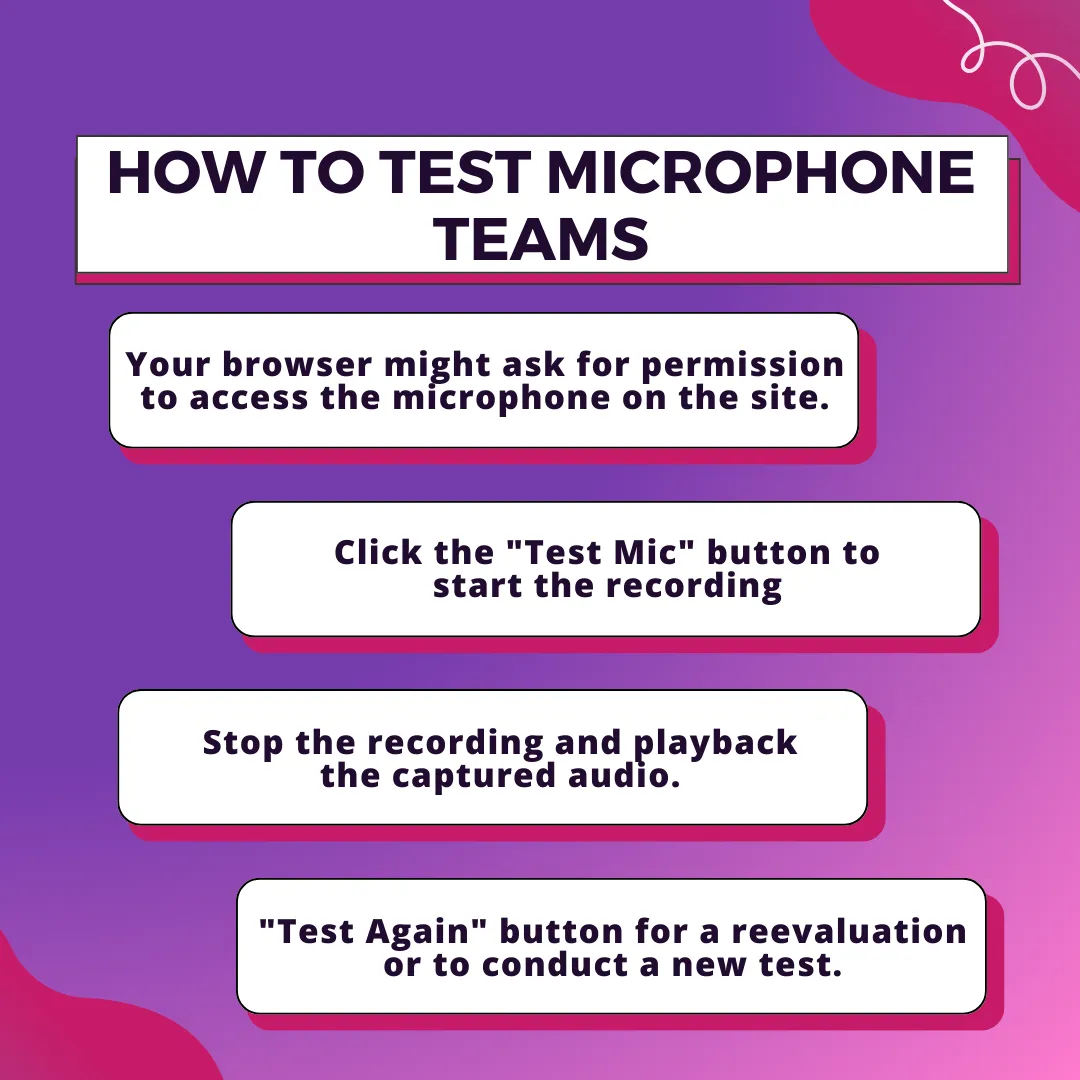
After connecting your headphones, click the 'Test Mic' button to start recording automatically, which will last approximately 30 seconds. You can also manually click "Stop Recording" to end the test early. Listen to the recorded audio and observe the sound waves in the testing area, which indicate your microphone's sound level.

Selecting "Test Again" allows you to retake the test or perform a new microphone assessment using the tool. Whether you want to re-evaluate your current settings or start fresh, simply click "Test Again." This feature offers flexibility and helps you fine-tune your microphone setup.

Adjust the recording volume with the Volume Adjustment feature in the test microphone. Whether you need to enhance or reduce the sound output, this setting helps you customize the audio levels for optimal clarity and performance during testing.

Explore the Settings menu to select your preferred microphone. Options include devices like High Definition Audio Devices and Communications Devices. Choose the microphone that best fits your needs for high-quality audio or communication use specifically when used in teams.
View detailed information about your audio setup, including parameters such as Auto Gain Control, Channel Count, Echo Cancellation, Latency, Noise Suppression, Sample Rate, and Sample Size. This overview helps you understand the performance and configuration of your microphone.

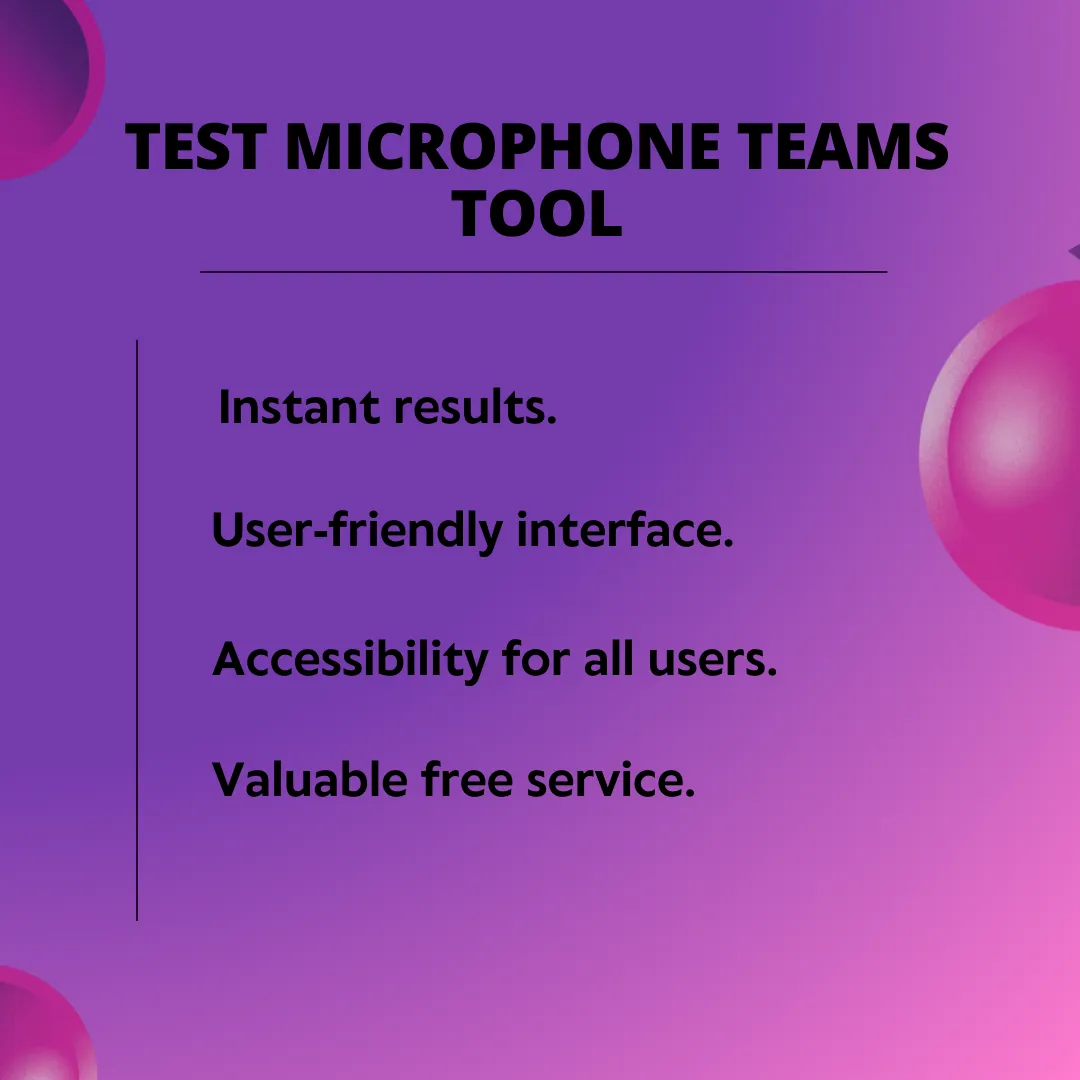
Our Test Microphone tool is designed for simplicity, effectiveness, and security. It’s free to use, compatible across devices, and provides instant results. Its accuracy ensures quick identification of any audio issues, making it an essential tool for maintaining quality communication.

Other useful information
Explore our visual guides and infographics
Test microphone teams tool
How to test microphone teams
Benefits of microphone test in teams
Frequently Asked Questions
These tools typically generate test signals and analyze the speaker or microphone response. The tool assesses parameters like frequency response, harmonic distortion, impulse response, and many more, and provides you with detailed insights into microphone performance.
As soon as you click the Test Mic button, the tool will start recording the sound along with the background noise. You can listen to the recorded audio and find out whether your microphones are working properly or not.
Yes, our Test Microphone in Teams is designed to be compatible with various operating systems such as Windows, Mac, Linux, Android, and iOS.
Yes, you can rely on our Test Microphone in Teams result as our website is reputable and trustworthy and uses advanced algorithms to test the microphone and produce reliable outcomes.
No. The tool is completely free and no associated charges are included to test your microphones.
It is always advisable to test your microphone before joining the meeting to avoid any potential interruptions. If ever your microphone is not working during meetings, then check it for visible physical damage of your microphone or ensure that it is properly connected to your device.
To Test Microphone in Teams, you need to give access to the site and connect your headphones. Then, click on the Test Mic button and the tool will automatically record the detected sound. Either you can manually stop the recording or the tool will automatically stop the audio after 30 seconds. If the sound waveforms in the testing area are reacting to the sounds, then the microphone is working. You can also listen to the recorded audio for further analysis.
If you find the volume of your microphone in Test Microphone in Teams is very low, then check whether the recorded audio volume is adequate or adjust your device’s audio settings accordingly. Further, test your microphone in other applications to identify if the issue is specific when working in teams.
Yes, you can adjust the volume of the recorded audio according to your requirements.
Our Test Microphone in Teams provides information on whether the microphones are working properly or not for clear communication during meetings based on parameters such as volume, clarity, and background noise.
Yes, you can test your microphone without joining a meeting by visiting our mymictest.com and opening the Test Microphone Teams feature. Then click on the "Test Mic" option to get the output.
Certainly, you can utilize the Test Microphone Teams feature on your mobile device by granting the necessary access to the tool. The tool is designed to be responsive, effortlessly adapting to various screen sizes.
No, you need not sign in or register an account to use the Test Microphone Teams as it is a browser-based application. Open the tool on your browser and start testing your microphone.
To improve the audio quality of your microphone, make sure to be in a quiet environment and adjust your microphone's positioning for optimal sound capture. Furthermore, you can adjust the volume levels and background noise suppression in the audio settings while working in Teams.
If Test Microphone Teams is not recognizing your microphone, then make sure to check that your microphone is properly connected to your computer. Check your device's audio settings to confirm that the microphone is selected as the default input device. Even if the problem persists, restart the Teams meeting or your device.
Performing a test microphone for Teams before joining a call involves selecting the correct microphone device, granting microphone permissions in the browser, and clicking the "Test Mic" button. The process captures audio to verify if the Teams mic test functions well, preventing any issues during live meetings.
If the microphone volume is low during Microsoft Teams, checking the input device settings and adjusting the microphone volume slider can resolve the issue. Testing with the test mic in Microsoft Teams multiple times can help pinpoint if hardware adjustments or Teams settings are required.
The test microphone for Teams can be conducted outside of active meetings by accessing online tools that simulate the mic online experience. This allows users to troubleshoot microphone problems in advance and ensures audio clarity before joining real-time conversations.
A mic test showing no sound often indicates a disconnected microphone or incorrect input selection. Verifying device connections and choosing the correct microphone settings typically resolves this problem.
Running a test mic online during Teams requires a stable internet connection, microphone permissions enabled in the browser, and compatible audio drivers installed. Confirming these prerequisites helps the test mic in Microsoft Teams function smoothly without interruptions.
The microphone test can pick up background noise during recording, offering insights into audio quality. Analyzing the noise levels during a test microphone for Teams assists users in adjusting environment or microphone settings for clearer communication.
When the audio test reveals microphone issues during meetings, checking audio device connections, and confirming that the microphone is selected as the default input often resolves problems. Running a mic test again after these steps ensures the microphone is ready for use.
It offers precise tuning feedback, helping you maintain perfect pitch at https://mymictest.com/bass-tuner. .
The guitalele tuner at https://mymictest.com/guitalele-tuner helps musicians tune their instruments accurately for the best sound quality. .
Over 80k Users Trust mymictest for Quick and Reliable Microphone Testing
Join a growing community of users who rely on mymictest.com for fast, secure, and easy microphone testing and audio analysis tools.